
Loop through a table
AKA, "For each" loop – this helper lets you run a workflow on each item in a table
If you have a collection of items, you can run a custom workflow on each one using the loop helper.
The workflow can be as simple as creating a record from each item. Or, it can be complex, including branches and multiple steps.
Setting up the loop
Start by creating a loop.
Then, map a table (a collection of items) into the table source and choose when you want the loop to end.
Most commonly, you want the loop to end at the end of the table.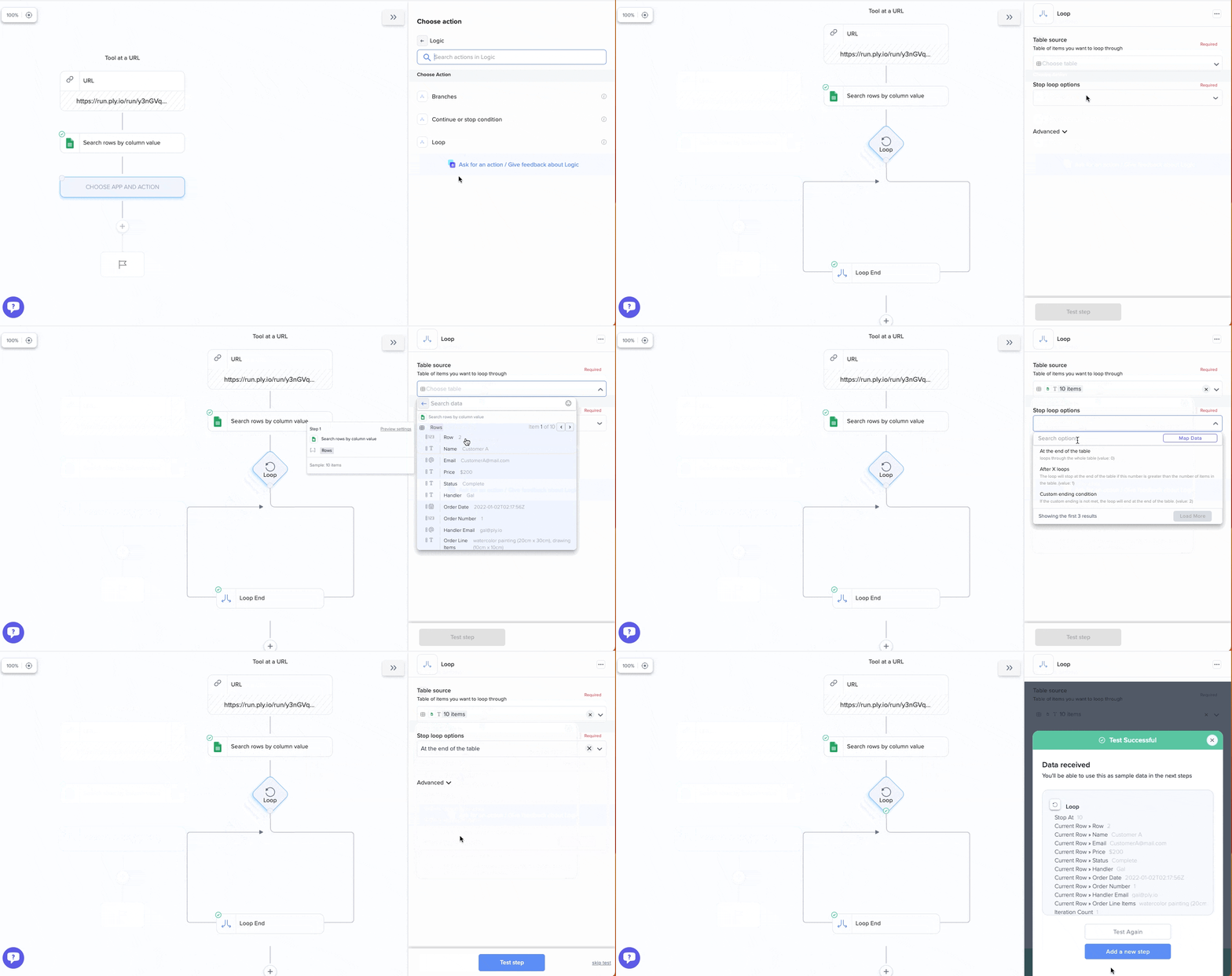
When you test the loop step, you'll see sample values for the current row, coming from the first item in the table you selected.
Adding steps inside the loop
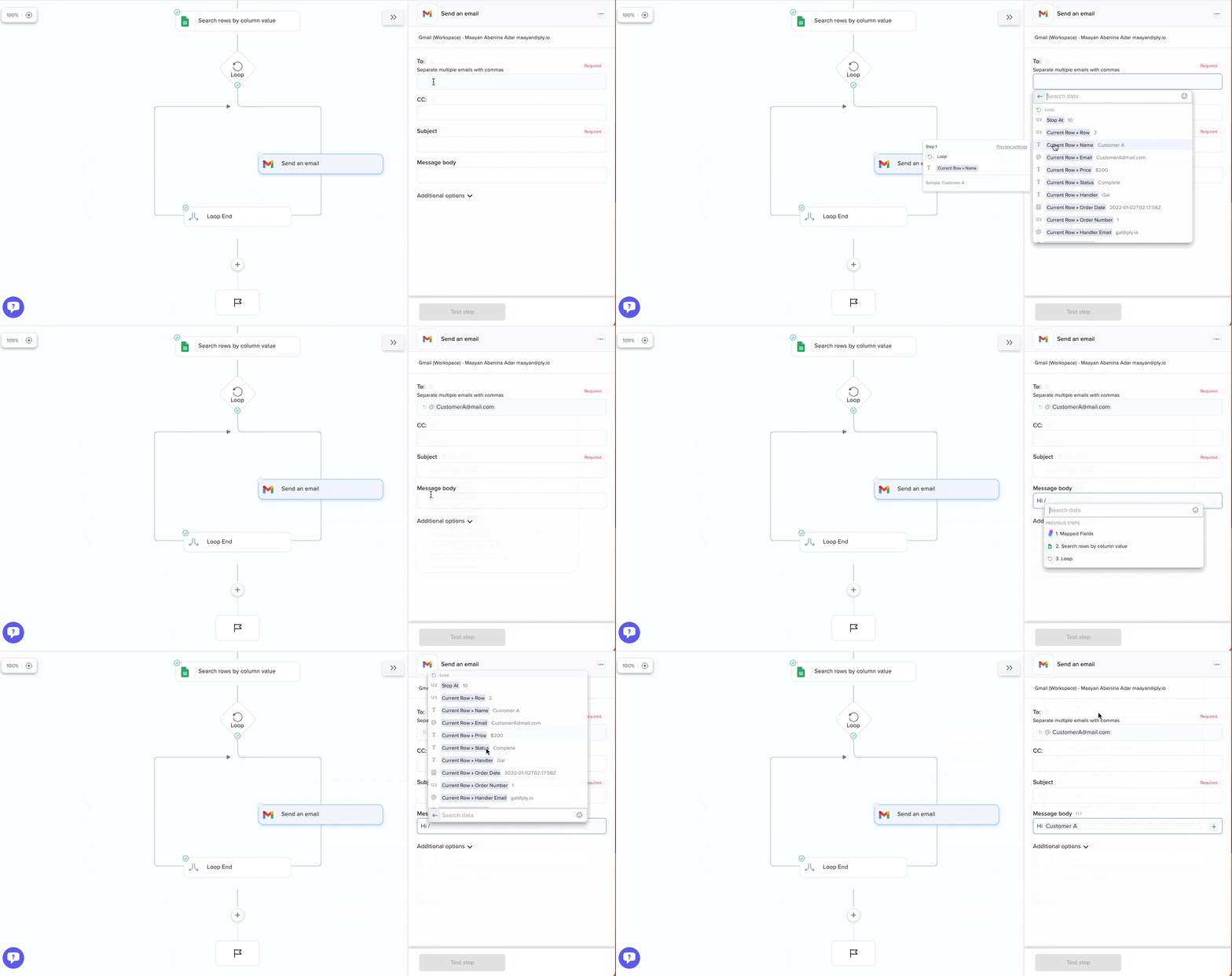
The current row values can be used only inside the loop. Wherever you use a current row value, the feature will run on every item's corresponding value when it runs.
For example, if you use an email address from the current row value as the recipient of an email, the feature will send an email to every email address in the input table:
What happens when the loop runs?
When you run a feature with a loop, the loop will receive an input table, according to the mapping you created when setting up the loop.
Let's say it has three items. In that case, the feature will run the loop 3 times. Each time, the current row values will change, according to the items in the table.
If the table has 0 items, the feature simply won't run the loop.
Loop output
Loop output lets you collect data from loop runs into a table that you can use in later steps.
Example
Let's say that you've added a search step inside a loop. With loop output, you can collect all the search results into a table to be used in a later step e.g. to be displayed in an interface.
Step-by-step instructions
Give the output value a name – this will become a column name in an output table
Map a value into the field. Typically, you'll want to map this from a step inside the loop.
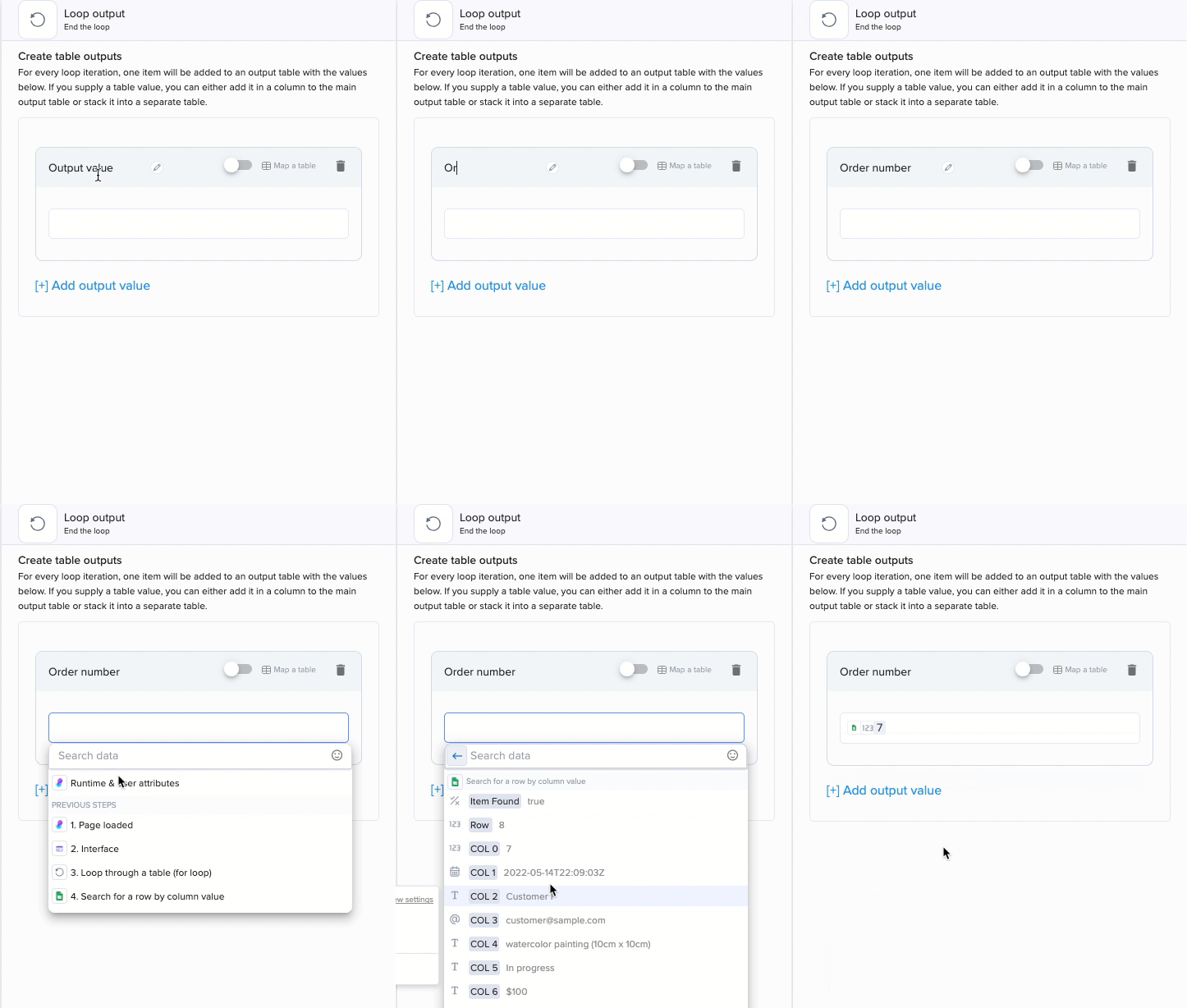
If you supply a table value, you can decide to add it as a new column in the main table or stack it into a separate one.
Testing the output step will output mini-tables, containing just a single item (or a single stack):
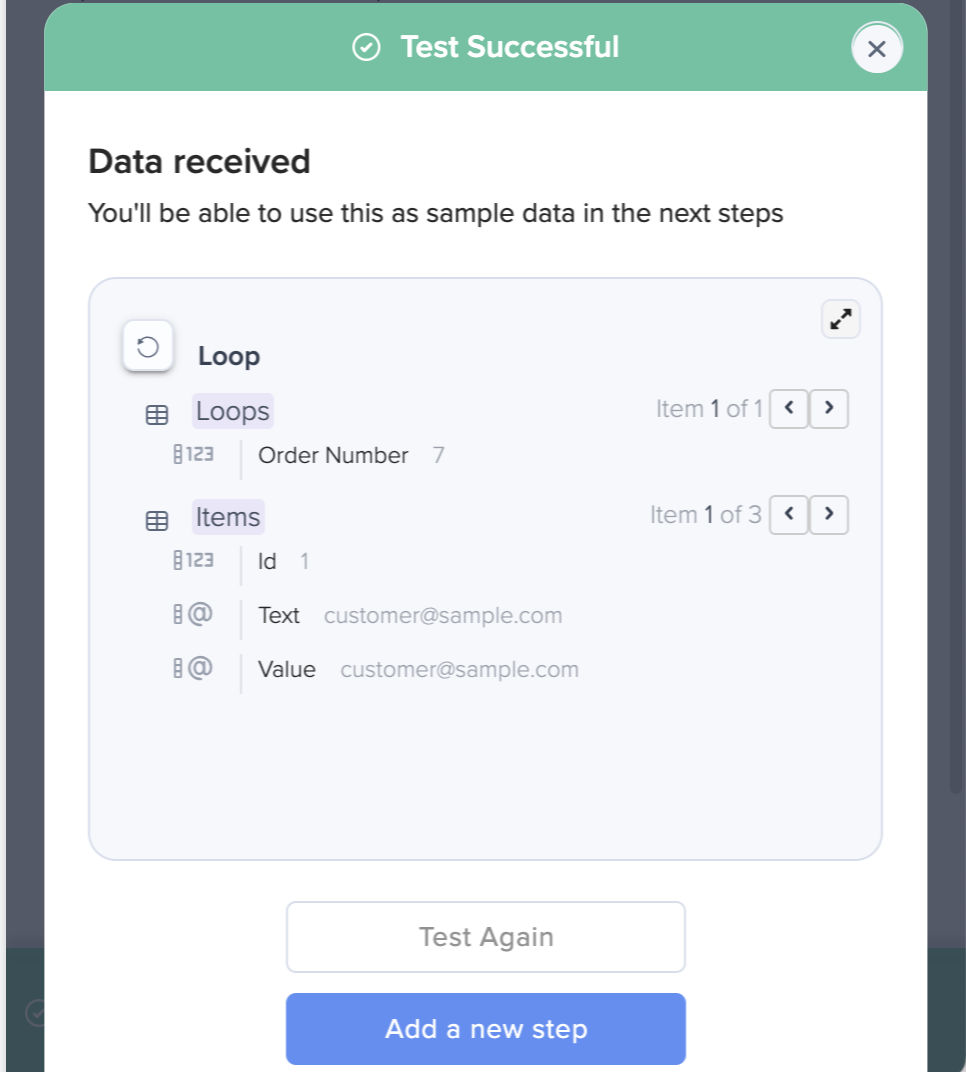
You can use these mini-tables to setup later steps. When the loop runs, later steps will receive the full loop output.
Last updated