
Understand spaces
Spaces determine who can contribute to building assets in your workspace.
All of your assets in Ply, including your features and account connections, belong to a space. A space is a part of your workspace that only certain members can access.
Every user has a private space. Only the user can edit and add assets in his or her private space. Note: workspace owners and admins can view private spaces and disable/delete assets.
You can collaborate on features with your team members in team spaces.
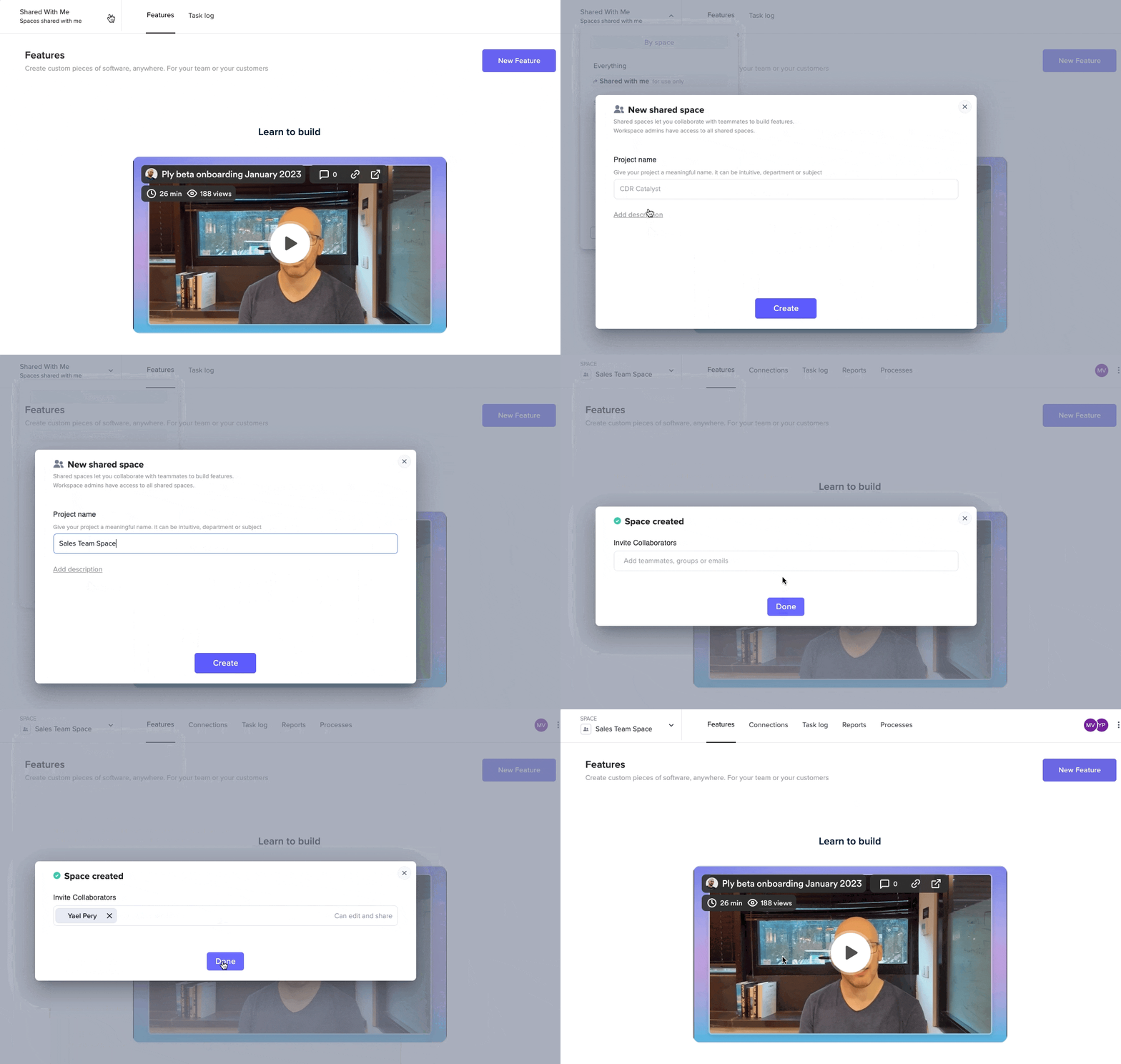
Creating a team space
From the top bar in the webapp, create a space and invite collaborators:
Connections
Account connections are credentials stored in Ply that let your features connect to your apps to access or update data there.
It's important to keep track of who can use a connection since it enables users to get, update, and delete data in the connected app. For example, if someone has access to the connection to your Gmail, they can get all of your messages, send emails from your address, and so on.
Connections in a private space
If you add a connection to your private space, only you can use it.
Workspace admins will be able to see it and they'll be able to see how it's used in features in your private space. However, they cannot use it to perform actions in your apps.
Connections in a team space
If you add a connection to a team space, by default, anyone who can contribute to the space will be able to use it.
You can restrict access to a connection in a team space by making it a sensitive connection. In that case, only the owner, admins, and users with access to sensitive assets will be able to use it.
Locked steps
If a collaborator tries to edit a step that uses a connection that he or she doesn't have access to, the step will be locked. The collaborator cannot change the settings of the step or the action.
Depending on the collaborator's permission, he or she may be able to replace the connection with a different one.
Last updated