
Context
An add-on's context determines where you'll see it in your app and what data can be used in the workflow
An add-on's context is where it lives in your app. Every app has its own contexts, roughly corresponding to the different items in that app.
CRM apps have contexts like deals, contacts, companies
Chat apps have contexts like conversations, contacts
Email and messaging apps have contexts like conversations, messages, attachments
The context also determines the contextual data from the app – the dynamic data about the item where the feature is triggered.
Choosing a context
You choose your add-on's context when you first create it. To choose the context, think about where you want to use the feature and what data from your app you want it to access.
Sample contextual data
To build your feature, you'll need to choose sample contextual data. This is a specific item, like a Gmail message, whose data you'll see in the workflow builder when you start building.
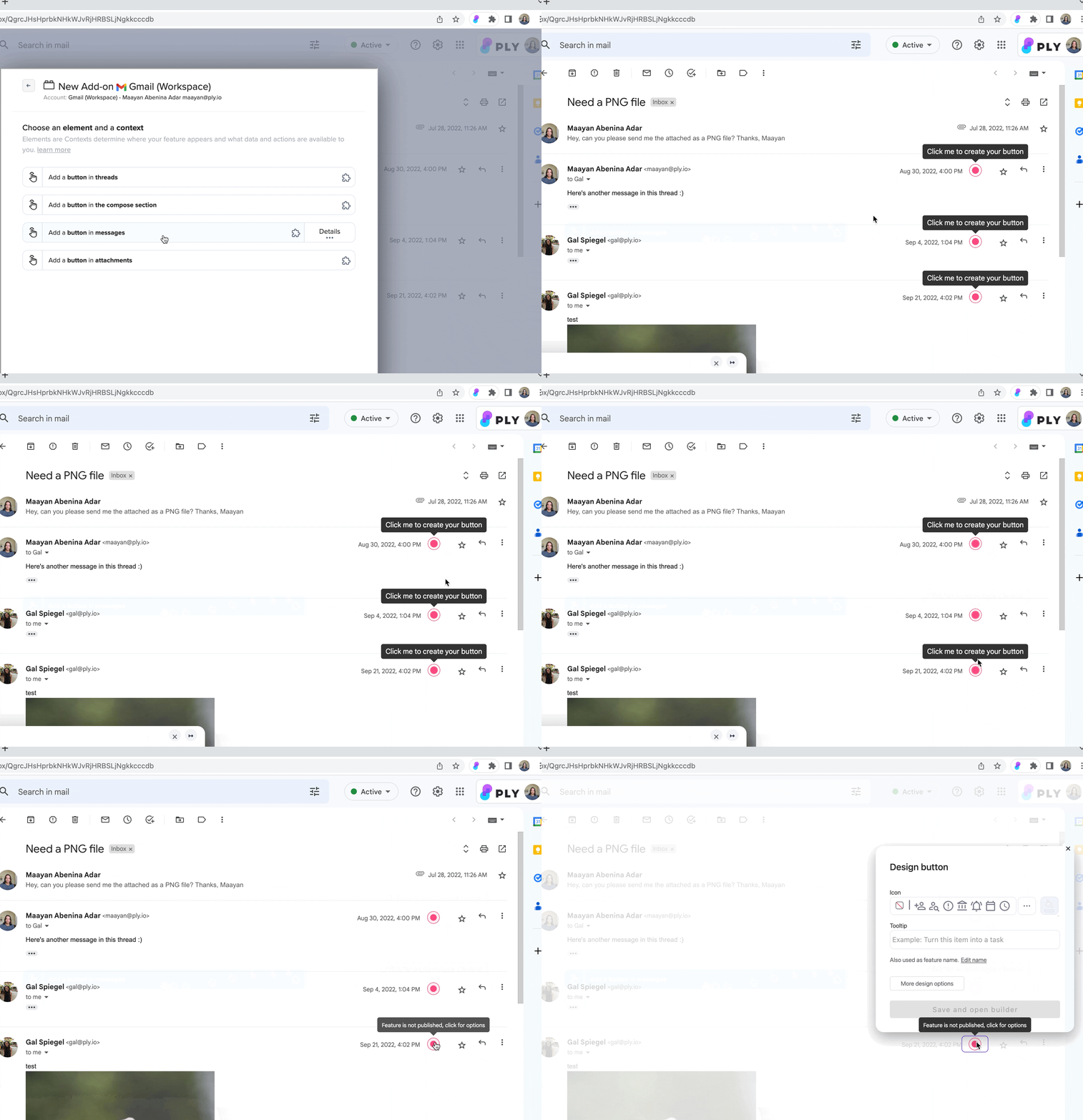
Make sure you choose a sample contextual item that has all of the data you intend to use in your feature. For example, if you want to send CC'd recipients in your Slack message, make sure you choose a message that has CC'd recipients.
Contextual actions
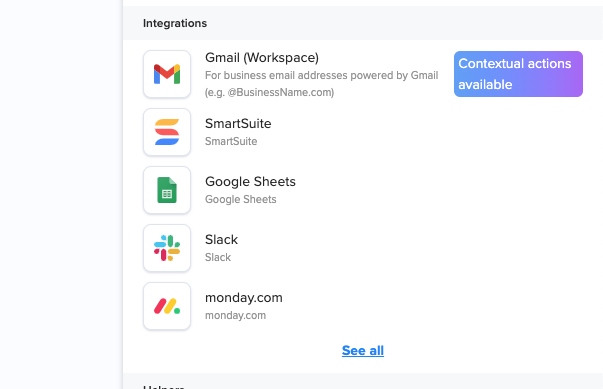
Contextual actions are actions that affect the context where the feature is added. They are supported only in certain contexts, typically compose sections where you write text.
When available in a context, the integration will be marked with a special icon:
Last updated