
Google OCR
Account connection instructions
Google OCR Account Connection
Create a project in the Google Cloud console
https://console.cloud.google.com/projectcreate Skip this step if you already have a project you want to use)
Allow billing on the project https://console.cloud.google.com/billing/enable
Go to IAM admin and click on the Service Accounts tab https://console.cloud.google.com/iam-admin/serviceaccounts
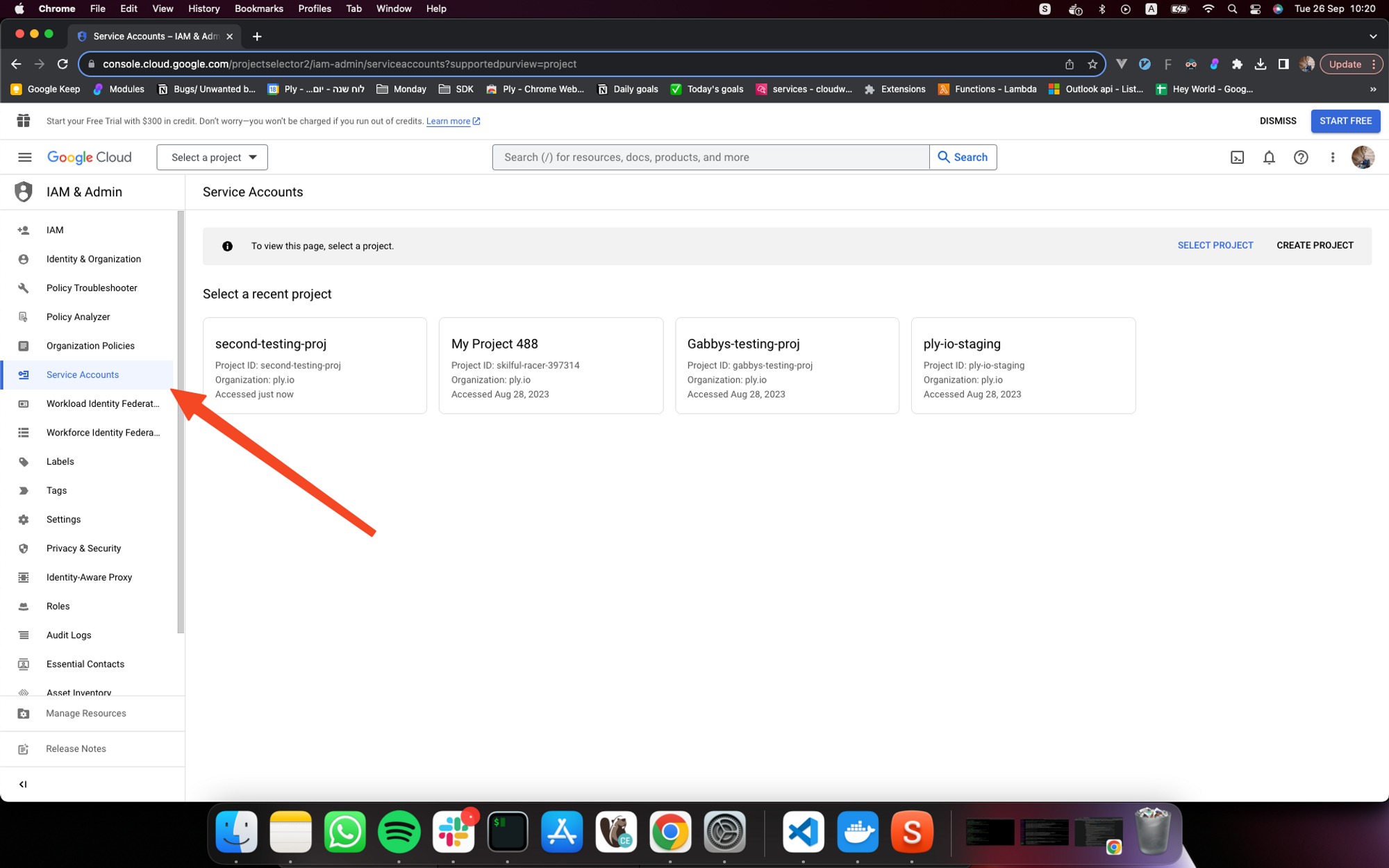
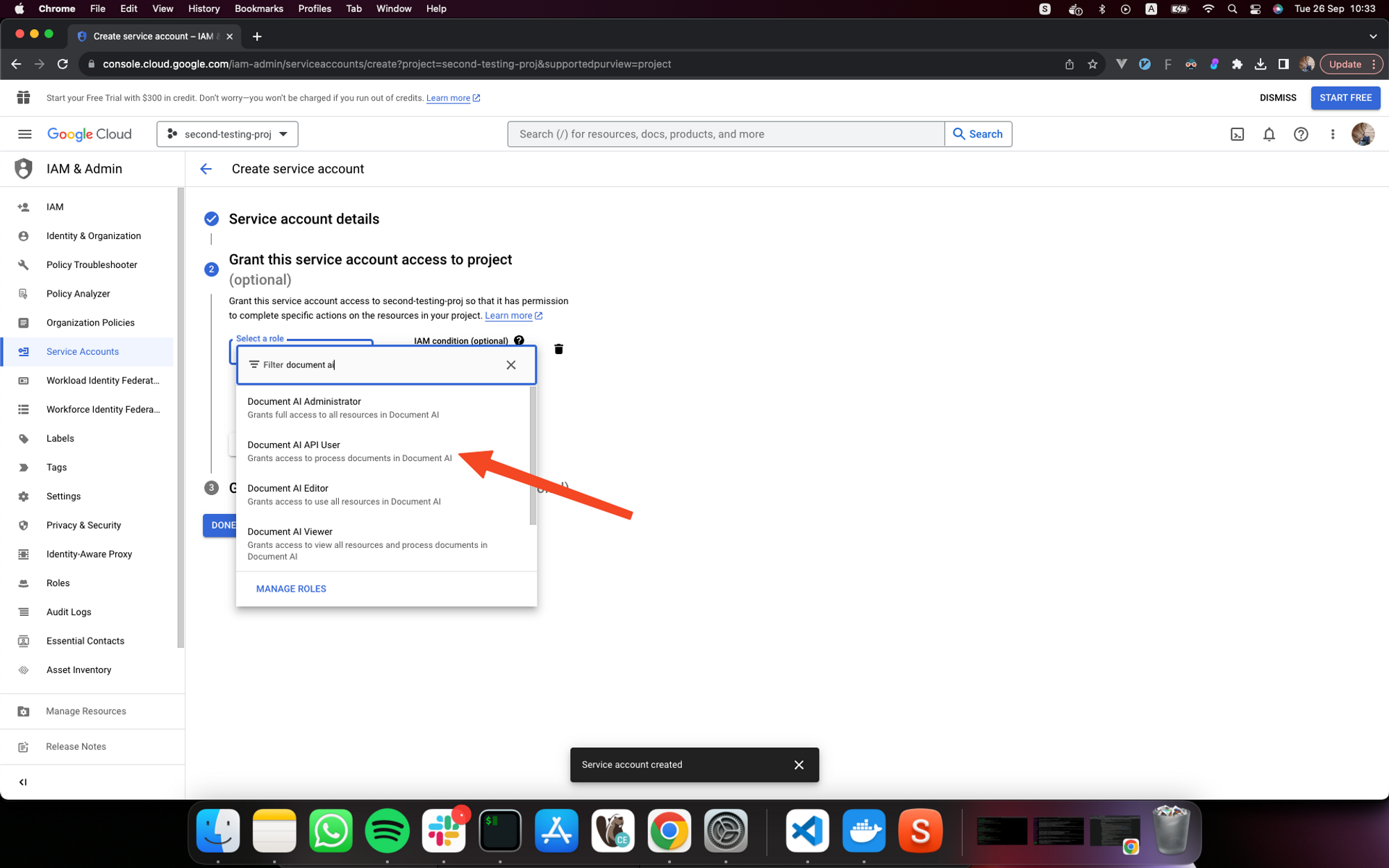
From there click on “CREATE SERVICE ACCOUNT” in the top bar. Step 1 will prompt you to assign a name to your service account – go ahead and do so. Step 2 will prompt you to grant this service account access to your project. Look for the “Document AI API User” Role and continue.
Go to the service account tab and click on the email of the newly created service account.
Click on “KEYS”, then “ADD KEY → Create new key” and pick “JSON “. This will download a json file to your computer. Note: this is the only way to retrieve the credentials for your service account and you will not be able to download this again. You will need this file later when you connect your account to Ply.
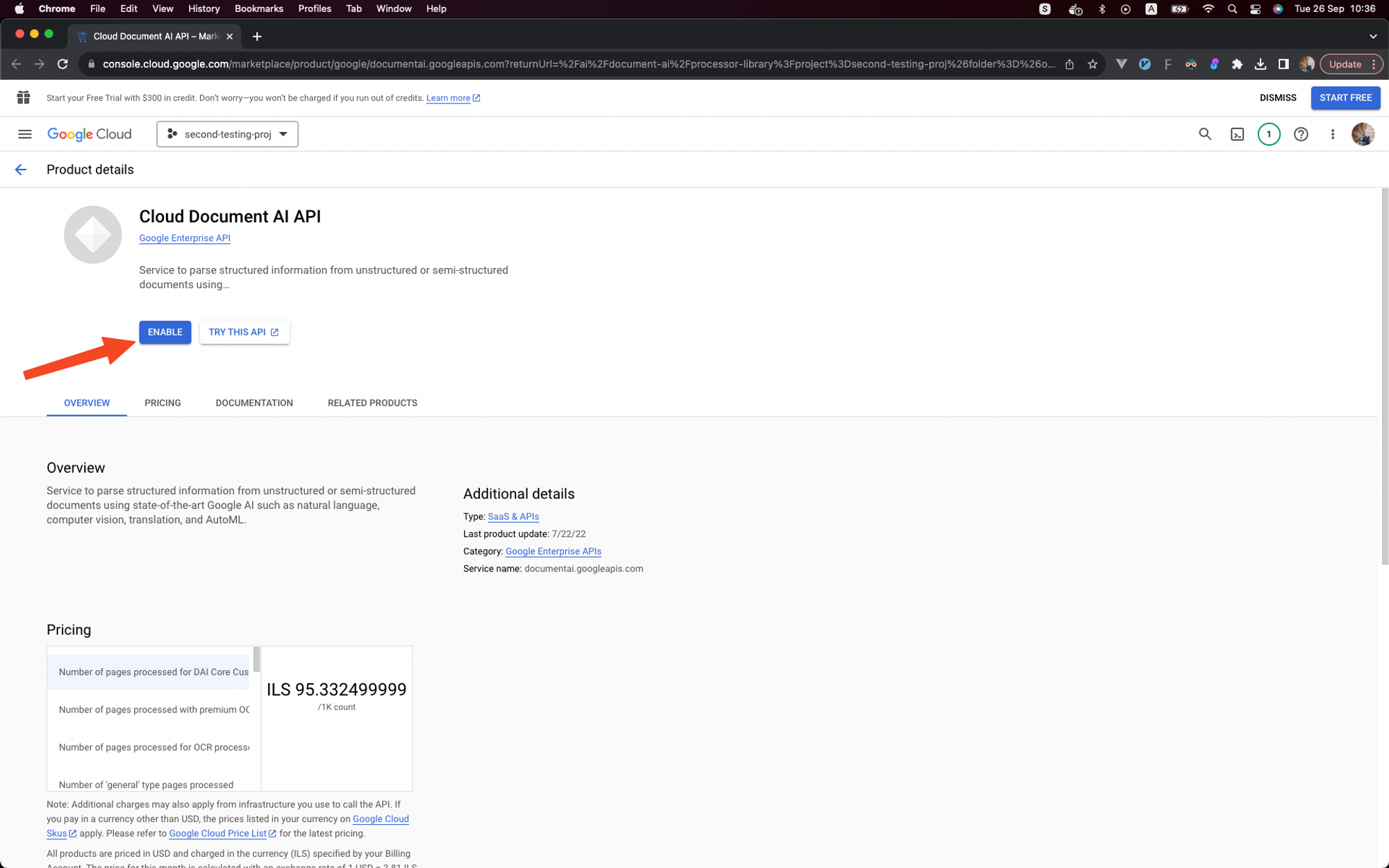
Go to https://console.cloud.google.com/ai/document-ai/processor-library and enable the Cloud document AI API
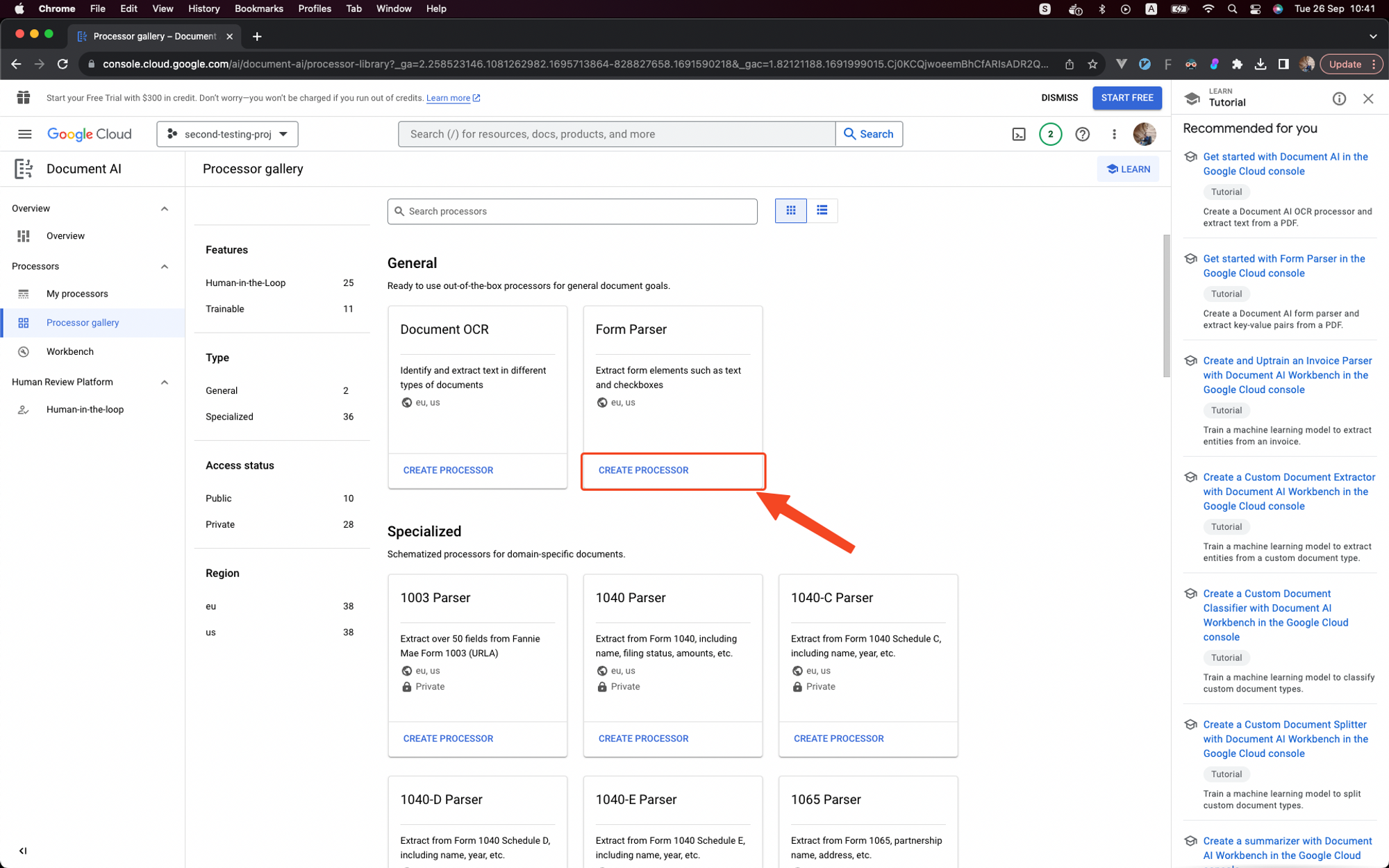
The next step is to create your processor, see https://cloud.google.com/document-ai/docs/processors-list for a list of available processors, e.g for receipts you should probably use “Form parser”. Visit https://console.cloud.google.com/ai/document-ai/processor-library, search for the processor you want and click “CREATE PROCESSOR”. Note the region in which you create the processor, you will need it when you connect your account to Ply. Copy the processor ID of the newly created processor. You will need this during your account connection.
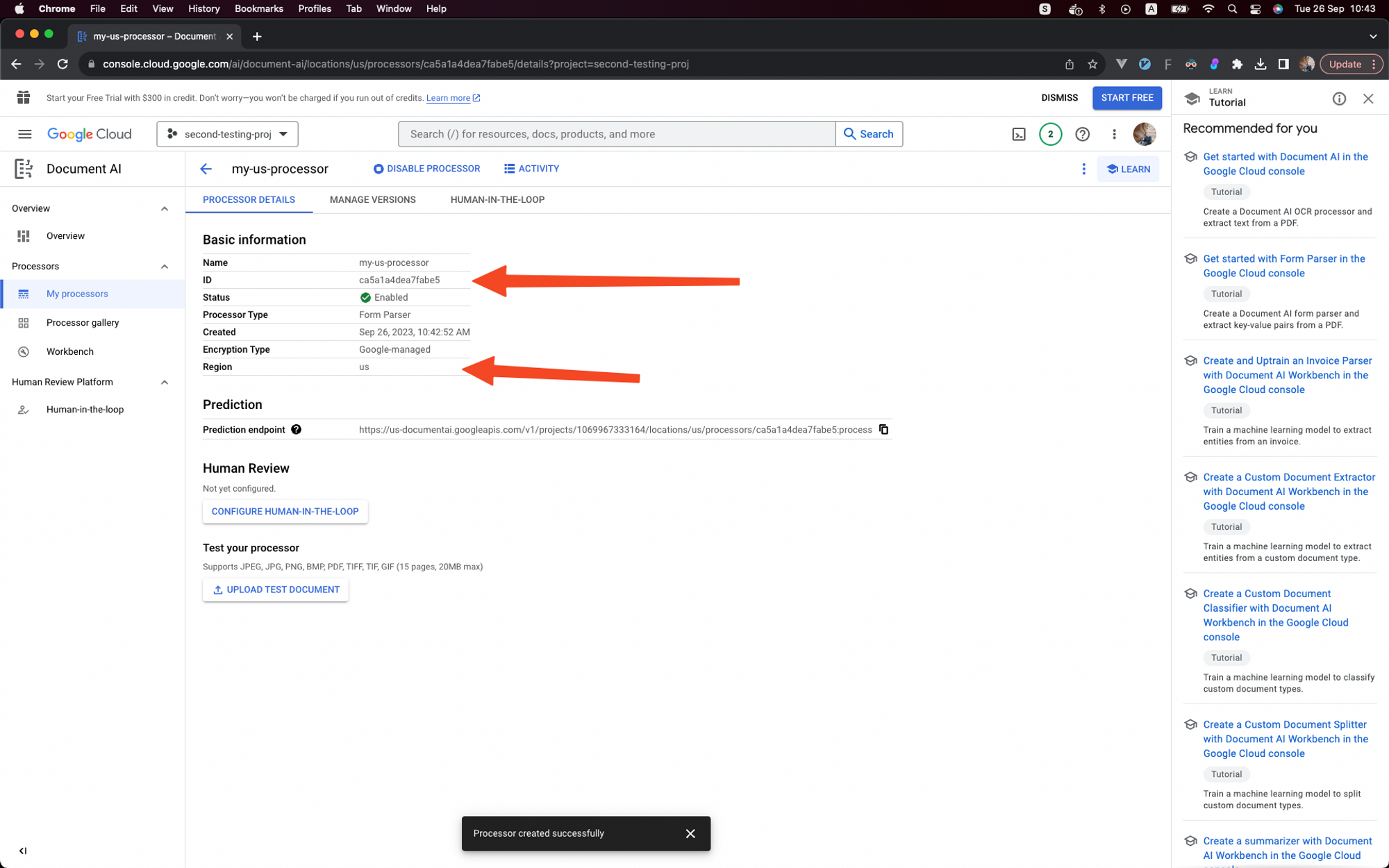
In Ply, in the window for connecting your Google OCR account, fill in the following from the json file you downloaded in step 7: client email, private key, project ID. Also fill In the ID and the location of the processor you created in step 9.
That’s it! You’re ready to use the Ply - Google OCR integration.
Troubleshooting
If you encounter similar errors to: resource does not have documentai.processors.processOnline permissions/roles it’s likely that something went wrong during step 5.
To fix this you can go to the IAM tab https://console.cloud.google.com/iam-admin/iam and grant project owner access to the service account you created. To do so click on “GRANT ACCESS” under “VIEW by principals”.
Then, under “Add principals” enter the service account’s email. Next, under “Roles” search for “Document AI API User” and save.
Last updated