
User groups
Groups make managing access to assets in your workspace easier, since you can give all members of a syncing group access to a feature
If you are a workspace owner or admin, you can create groups of users. There are two ways to create a user group.
Creating a user group based on users of an app (synced group)
Often you'll want to share a feature with a group of users from an app. For example, if you built an awesome feature for a customer support app, you may want to share the feature with all of your teammates using the app.
To do this, create a synced group: a group of workspace members that automatically syncs with users in another app.
How to create a synced group
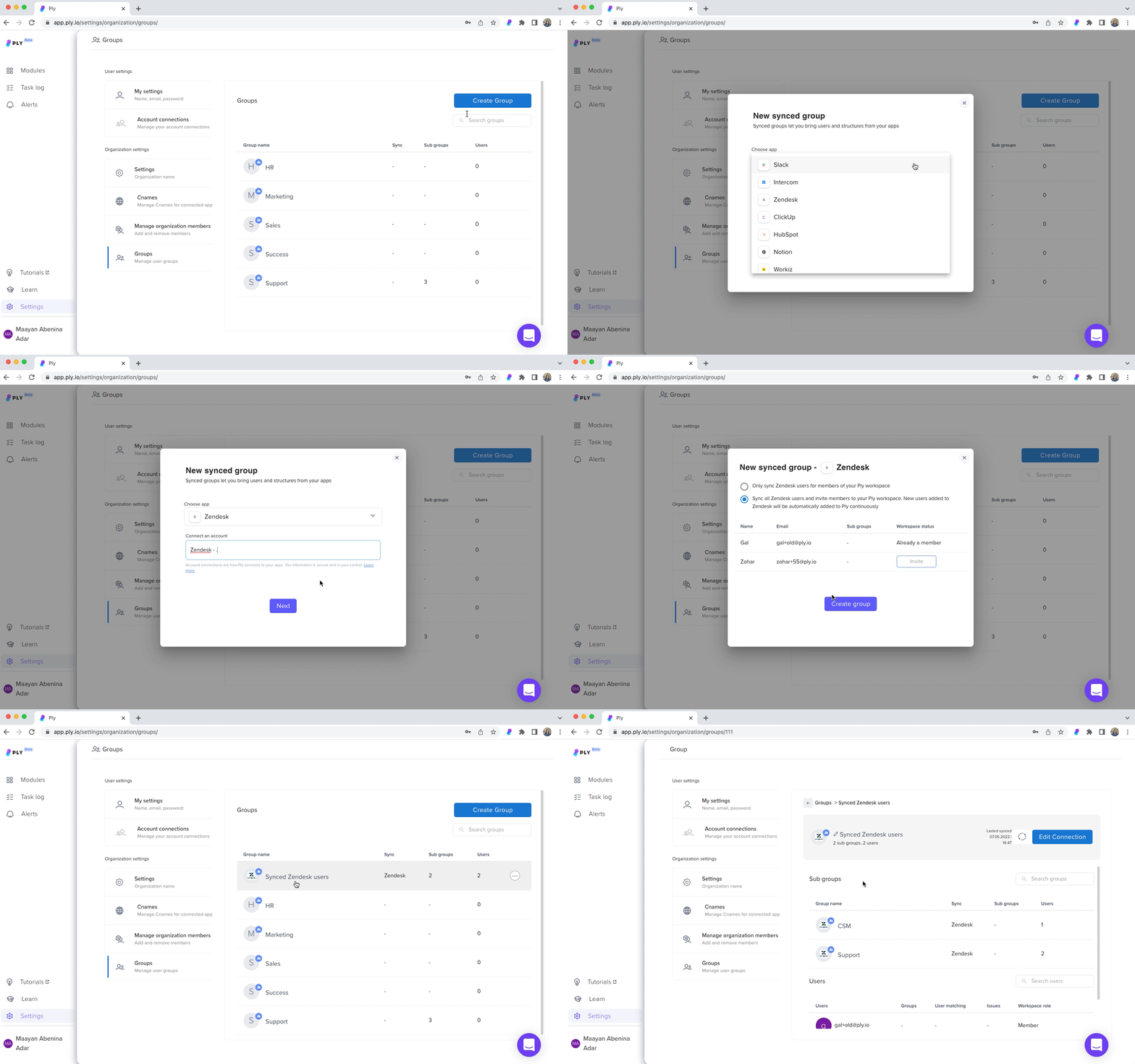
In Settings, click on Groups > Create group > Sync
Choose the app that you want the group to sync with and connect your account
Choose between syncing options A or B
A: Sync with anyone in the other app (users that are not yet in your workspace will be invited)
B: Sync only with users that already exis in your Ply workspace
Creating a user group manually
You can also create a group by selecting which members in your workspace you want to include.
In Settings, click on Groups > Create group > Manually
Name your new group
Add some or all of your workspace members to the group
Sharing a feature with a user group works just like sharing with a user.
Last updated